azure, Azure DevOps, Powershell

Azure : Add IP restriction rule to App Service using powershell script

Overview:

Azure Apps service has a feature which enables you to restrict user access to a web application using IP restriction feature.You can allow or deny the access to a set of IPs to your web app, using this feature.

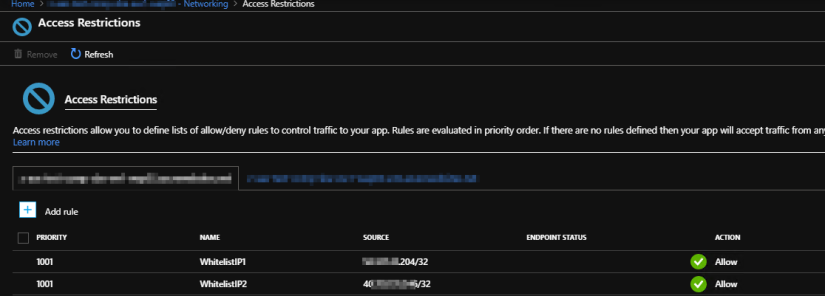
You can find this option by clicking on Networking >Configure Access Restrictions .
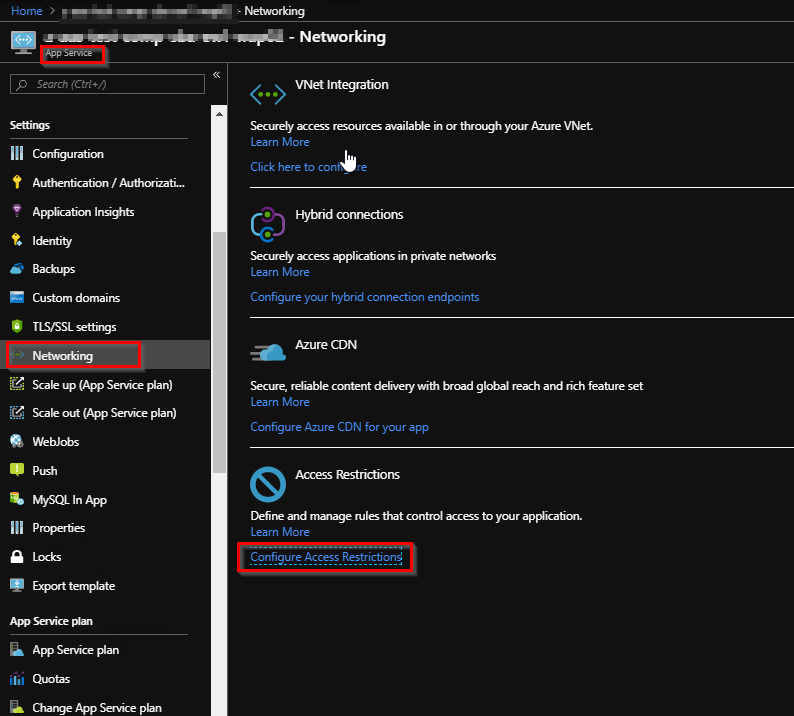
NetworkingAppService

WhitelistIP

By default, it will apply the same restriction to the scm website as well.

Use Cases :

Below are the few use cases where you need to add IP restrictions.

  1. release agent IPs : When you automate the provisioning the azure resources through pipelines, sometimes, you need to white list the IP of the agent (the VM, in which the tasks are running) for running some tasks (for e.g. health check of website).
  2. Outbound IPs : When you have a web job associated with your web app, all the calls will be made by the outbound IP list available in the app service. In that case you need to white list the outbound IPs as well (Turning on Allow Azure IP option also works for this scenario).
  3. User IPs : If you want to provide access to different developers and testers, you need to white list their IPs.

You can run this powershell in your release pipeline once the web app is created. It will white list the IPs that you provide. You can add one pipeline variable to contain all the comma separated IP addresses and use that variable in the powershell task to pass the IPs to the script.

Parameters:

  1. RGName : Name of the Resource Group
  2. WebAppName : Name of the App Service
  3. priority :  Priority of the IP restriction(e.g: 1001)
  4. IPList : list of comma separated IPs which needs to be white listed

Script:

Script 1 :

Param
(
# Name of the resource group that contains the App Service.
[Parameter(Mandatory=$true)]
$RGName,

# Name of your Web or API App.
[Parameter(Mandatory=$true)]
$WebAppName,

# priority value.
[Parameter(Mandatory=$true)]
$priority,

# WhitelistIp values.
[Parameter(Mandatory=$true)]
$IPList,

# rule to add.
[PSCustomObject]$rule


)
function Add-AzureIpRestrictionRule
{
$ApiVersions = Get-AzureRmResourceProvider -ProviderNamespace Microsoft.Web | 
Select-Object -ExpandProperty ResourceTypes |
Where-Object ResourceTypeName -eq 'sites' |
Select-Object -ExpandProperty ApiVersions

$LatestApiVersion = $ApiVersions[0]

$WebAppConfig = Get-AzureRmResource -ResourceType 'Microsoft.Web/sites/config' -ResourceName $WebAppName -ResourceGroupName $RGName -ApiVersion $LatestApiVersion

$WebAppConfig.Properties.ipSecurityRestrictions = $WebAppConfig.Properties.ipSecurityRestrictions + @($rule) | 
Group-Object name | 
ForEach-Object { $_.Group | Select-Object -Last 1 }

Set-AzureRmResource -ResourceId $WebAppConfig.ResourceId -Properties $WebAppConfig.Properties -ApiVersion $LatestApiVersion -Force 
}
$IPList= @($IPList-split ",")
Write-Host "IPList found "$IPList"."
$increment = 1
foreach ($element in $IPList)
{
if ($element -eq "" -OR $element -eq " ") {continue}
else
{
$element=$element.Trim()
$rule = [PSCustomObject]@{
ipAddress = "$($element)/32"
action = "Allow"
priority = "$priority"
name = "WhitelistIP"+ $increment}
$increment++
Add-AzureIpRestrictionRule -ResourceGroupName "$RGName" -AppServiceName "$WebAppName" -rule $rule
}
}
$OutboundIP = @(Get-AzureRmWebApp -Name "$WebAppName" -ResourceGroupName "$RGName").possibleOutboundIPAddresses -split ","
$increment = 1
foreach ($element in $OutboundIP)
{
$rule = [PSCustomObject]@{
ipAddress = "$($element)/32"
action = "Allow"
priority = "$priority"
name = "OutboundIP"+ $increment}
$increment++
Add-AzureIpRestrictionRule -ResourceGroupName "$RGName" -AppServiceName "$WebAppName" -rule $rule
}

This script is useful when you want to add less number of individual IP addresses.

If you have a large number of IP addresses, you can put them in a powershell script file(script 3) as a variable and call the below powershell file(script 2) which will add those IPs in the settings.

The reason we are using 2 powershell script is, script 4 may vary from one environment to other as it contains the list of IPs. So you may need to create multiple copies of script 3 based on environments (dev , test or prod). All those files can call script 2 to add the IPs to the access restriction rule. However, If you do not have any changes in list of IPs in any environment, you can put the “rules” custom object in script 2 itself and use it.

Sctipt 2:

Param(
[string]$WebAppName,
[string]$RGName,
[string]$resourceType='Microsoft.Web/sites/config',
[PSCustomObject] $rules
)

function AddRules($rules) {

$rules = @() 
$priority = 100
foreach ($item in $rules) {

$rule = [PSCustomObject]@{ ipAddress = $item.ipAddress ; priority = $priority }

$rules += $rule
$priority = $priority + 100
} 
return $rules 
}

$ApiVersions = Get-AzureRmResourceProvider -ProviderNamespace Microsoft.Web |
Select-Object -ExpandProperty ResourceTypes |
Where-Object ResourceTypeName -eq 'sites' |
Select-Object -ExpandProperty ApiVersions

$LatestApiVersion = $ApiVersions[0]

# Registering IPs
Write-Host 'Registering IPs...'

$Settings = Get-AzureRMResource -ResourceName $WebAppName -ResourceType $resourceType -ResourceGroupName $RGName -ApiVersion $LatestApiVersion

$Settings.Properties.ipSecurityRestrictions = AddRules -rules $rules

Set-AzureRmResource -ResourceId $Settings.ResourceId -Properties $Settings.Properties -ApiVersion $LatestApiVersion -Force

Write-Host -ForegroundColor "Green" "IP range Added successfully!"

Script 3:

Param
(
# Name of the resource group that contains the App Service.
[Parameter(Mandatory=$true)]
$RGName,

# Name of your Web or API App.
[Parameter(Mandatory=$true)]
$WebAppName,

# subscriptionId value.
[Parameter(Mandatory=$true)]
$InputFile
)
[PSCustomObject]$rules = 
@{ipAddress = "XXX.XX.2.XXX/32"},`
@{ipAddress = "XX.XXX.XX.XXX/32"},`
@{ipAddress = "XXX.X.3X.22X/32"},`
@{ipAddress = "2X3.22X.XXX.XXX/32"},`
@{ipAddress = "XXX.XX.2.XX/32"},`
@{ipAddress = "2X3.22X.XXX.XXX/32"},`
@{ipAddress = "2XX.XXX.XXX.XXX/32"},`
@{ipAddress = "2XX.X2X.XXX.2XX/32"},`
@{ipAddress = "XX.X2.XX.XX/32"},`
@{ipAddress = "XX.3X.X2X.2X2/32"},`
@{ipAddress = "XX.33.2XX.XX3/32"},`
@{ipAddress = "XX.XX.XX.2X3/32"},`
@{ipAddress = "X3.XX.X.XXX/32"},`
@{ipAddress = "2X2.XXX.X2.XX/32"},`
@{ipAddress = "2XX.X2X.XX.XXX/32"},`
@{ipAddress = "XX.XXX.X2X.XX/32"}

Write-Host 'PRODUCTION SLOT IPs...'
& $InputFile -WebAppName $WebAppName -resourceGroupName $RGName -rules $rules 
Write-Host 'STAGING SLOT IPs...'
& $InputFile -WebAppName $WebAppName/Staging -resourceGroupName $RGName -rules $rules -resourceType Microsoft.Web/sites/slots/config

This is just a demo. You may need to change your script based on your need. Hope it helps. Happy learning. 🙂 


azure, Azure DevOps

Azure DevOps : Build and publish your project to userdefined folder using MSBuild task in build pipeline

Overview :

In most of the cases the solution of your application contains more than one project for example one or more web app, function app, WCF service, web API. When you build the solution you will get the predefined folder structure in the artifact. But sometime you might need to publish the different project to some user defined folder structure rather than the default folder structure. 

In this article we will discuss how you can have complete control over where you want your projects to be placed while publishing the code.

Solution:

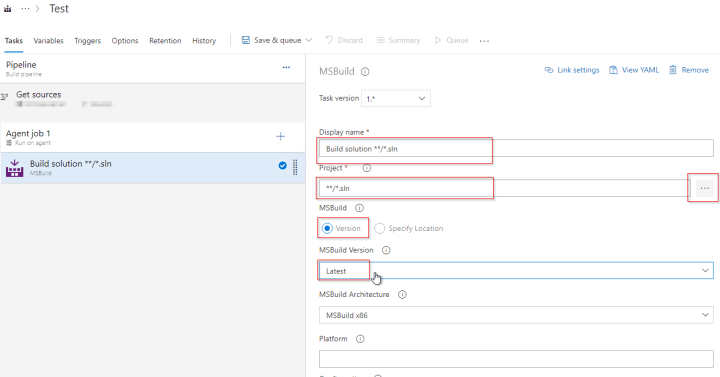
  • Add the MSBuild task in your build pipeline if , either you have not one already or you have one MSBuild task which builds you whole solution.
  • Select the necessary settings in the new task as shown below. In the project tab you need to select the project that you want to build separately and publish to a different folder.


1


  • Use $(BuildConfiguration) in the Configuration section. 

2

  • BuildConfiguration can be configured in the variable section as per the need. 

3

  • MSBuild Arguments field is the one which will help you publishing your code to the folders that you want. Put the below mentioned setting in the MSBuild Arguments section.
/p:WebProjectOutputDir="$(Build.ArtifactStagingDirectory)\$(BuildConfiguration)\WebAPIs\WebAPIExample1"
/p:OutputPath="$(Build.ArtifactStagingDirectory)\$(BuildConfiguration)\WebAPIs\WebAPIExample1\bin"

Below is the screenshot for your reference.

4

  • Build.ArtifactStagingDirectory is the predefined build variable which stores the local path on the build agent where any artifacts are copied to before being pushed to their destination. For example: c:\agent_work\1\a 

You can publish different project into different user defined folder by following the above mentioned steps. But what happens when the folder you want, is not part of the solution. For example if your SQL scripts or power shell scripts are not part of the solution but you need them in your artifact, you can achieve that as well. It is discussed in detail in my next article. 

Happy learning . 🙂

azure

Azure Resource Manager and ARM templates

Azure Resource Manager:

Azure Resource Manager is the deployment and management service for Azure.You can think of it as a management layer that enables you to create, update, and delete and organize the resources in Azure subscription.

You can create azure resources using one of the following methods.

  1. Azure portal
  2. Azure powershell
  3. Azure CLI
  4. Rest Client

When you create a resource using the above mentioned methods, the Azure Resource Manager API handles your request in the background as a result of which we get  consistent results no matter which method you use to create a resource.

ARM Template:

Azure Resource Manager allows you to provision your resources using a declarative template. In a single template, you can deploy multiple resources along with their dependencies.

ARM template is a JavaScript Object Notation (JSON) file that defines one or more resources to deploy to a resource group or subscription. The template can be used to deploy the resources consistently and repeatedly.

The benefit of using ARM template in your project is mainly 3 fold.

  1. Re-usability: Once you create the ARM template for a resource you can use it multiple times to create same kind of resources with just few changes in the parameters.
  2. Consistency: By using a template, you can repeatedly deploy your solution throughout its lifecycle and have confidence your resources are deployed in a consistent state.
  3. Change tracking: Since ARM templates are json files, you can add it in the source control of your project so that you can leverage all the features of source control like change logs, history of changes, author of the changes etc.

Structure and Syntax of ARM templates:

ARM template has the following structure.

{
“$schema”: “”,
“contentVersion”: “”,
“apiProfile”: “”,
“parameters”: { },
“variables”: { },
“functions”: [ ],
“resources”: [ ],
“outputs”: { }
}

Element name Required Description
$schema Yes Location of the JSON schema file that describes the version of the template language.
contentVersion Yes Version of the template (such as 1.0.0.0). You can provide any value for this element. Use this value to document significant changes in your template.
apiProfile No An API version that serves as a collection of API versions for resource types. Use this value to avoid having to specify API versions for each resource in the template.

For more information, see Track versions using API profiles.

parameters No Values that are provided when deployment is executed to customize resource deployment. It comes handy when we use it in Continuous Deployement pipeline.
variables No Values that are used as JSON fragments in the template to simplify template language expressions.
functions No User-defined functions that are available within the template.
resources Yes Resource types that are deployed or updated in a resource group or subscription.
outputs No Values that are returned after deployment. It comes in handy when we use ARM template in Continuous Deployment pipeline.
  • There are many functions which you can use in ARM templates. You can find more details here. And if you wish to know the syntax of each element, you can go through the links mentioned in the above table.

Types of ARM templates:

  1. Nested Templates
  2. Linked Templates

Nested Templates:

You can deploy multiple resources using one template, by defining the resources one after another. Here you will be having one main template file which will contain the template for all the resources and only one parameter file which will contain all the parameters that will be given as input to the template.

This is advisable if you have less number of resources and there is not much customization involved in  your ARM template. Here is an example of Nested ARM template with parameters.

Limitation: The template file can be of 1 MB max.

Linked Templates:

Linked template comes in handy when

  1. You have large number of services to deploy: When you have a large number of services to deploy, there is a very rare chance that your template file size may go beyond 1MB if you use nested template. It is most unlikely to go beyond 1 MB since these are the JSON files. But using  linked template will increase your readability of code. It will be easy to manage your ARM templates.
  2. You want to reuse the template for multiple deployment: When you want to reuse the template of a resource for multiple deployments, you can leverage the linked template. All you need to do is have a separate parameter file for each deployment which will contain the parameters that you want to use for each deployment.

Here is an example of linked template.

Few tricks and tips:

The basic syntax of the template is JSON. However, below are the few points about how to use different expressions in the template.

  • Expressions start and end with brackets: [ and ], respectively.

For example :

"parameters": {
  "location": {
    "type": "string",
    "defaultValue": "[resourceGroup().location]"
  }
},
  • You can use  functions that Resource Manager provides to use within a template. Function calls are formatted as functionName(arg1,arg2,arg3). The syntax .location retrieves one of the properties (i.e location of the resource) from the object returned by that function.
  • Template functions and their parameters are case-insensitive. For example, Resource Manager resolves variables(‘var1’) and VARIABLES(‘VAR1’) as the same. Unless the function explicitely modifies case (such as toUpper or toLower), the function preserves the case.
  • “demoVar1”: “[[test value]” interpreted as [test value] but “demoVar2”: “[test] value” interpreted as [test] value .
  • To pass a string value as a parameter to a function, use single quotes. For Example:”name”: “[concat(‘storage’, uniqueString(resourceGroup().id))]”
  • To escape double quotes in an expression, such as adding a JSON object in the template, use the backslash. For example:
"tags": {
    "CostCenter": "{\"Dept\":\"Finance\",\"Environment\":\"Production\"}"
},
  • You can use concat function to merge strings.
  • Sometimes,you would need to use some properties of a resource while creating other resources. For example: you would need the resource id of server farm (Microsoft.Web/Serverfarms/<app service plan>) while creating the scale out and scale in settingsyou can use the below syntax to get the resource id of server farm.[resourceId(‘Microsoft.Web/serverFarms/’, parameters(‘svcPlanName’))]
  • reference : 

When you need to get the properties of the resources you would need to use the reference function.

  • For example:
     
    > To get the instrumentation key of application insight :
    [reference(resourceId('microsoft.insights/components/', parameters('AppInsights_name')), '2015-05-01').InstrumentationKey]
    > To get the app id of application insight : 
    [reference(resourceId('Microsoft.Insights/components/', parameters('AppInsights_name')), '2015-05-01').AppId]
    > To get the web app url of a deployment slot in app service :
    [concat('https://', reference(resourceId('Microsoft.Web/Sites/Slots', parameters('webAppName'),variables('SlotName')),'2018-11-01').defaultHostName)]
    > To get the web app url in app serivce : 
    [concat('https://', reference(resourceId('Microsoft.Web/Sites', parameters('webAppName')),'2018-11-01').defaultHostName)]
  • You can also use reference function to use the different values from other linked templates. You can find the example of this here . In this example, you can see that it is using the output values of application insight linked template in main template using reference function.
  • Condition:When you must decide during deployment whether to create a resource, use the condition element. The value for this element resolves to true or false. When the value is true, the resource is created. When the value is false, the resource isn’t created. The value can only be applied to the whole resource.Typically, you use this value when you want to create a new resource or use an existing one. For example, to specify whether a new storage account is deployed or an existing storage account is used, use:
  • {
        "condition": "[equals(parameters('newOrExisting'),'new')]",
        "type": "Microsoft.Storage/storageAccounts",
        "name": "[variables('storageAccountName')]",
        "apiVersion": "2017-06-01",
        "location": "[resourceGroup().location]",
        "sku": {
            "name": "[variables('storageAccountType')]"
        },
        "kind": "Storage",
        "properties": {}
    }
{
  "$schema": "https://schema.management.azure.com/schemas/2015-01-01/deploymentTemplate.json#",
  "contentVersion": "1.0.0.0",
  "resources": [
    {
      "apiVersion": "2016-01-01",
      "type": "Microsoft.Storage/storageAccounts",
      "name": "[concat('storage', copyIndex(1))]",
      "location": "[resourceGroup().location]",
      "sku": {
        "name": "Standard_LRS"
      },
      "kind": "Storage",
      "properties": {},
      "copy": {
        "name": "storagecopy",
        "count": 3
      }
    }
  ],
  "outputs": {}
}

Note: In the above example copyIndex value will start from 1. If you do not mention the offset value it will start from 0. Which means your storage names will be storage0, storage1, storage2.

> To create WebApp1Storage, FunctionApp1Storage, WebApp2Storage, FunctionApp2Storage

"parameters": { 
  "apps": { 
    "type": "array", 
    "defaultValue": [ 
      "WebApp1", 
      "FunctionApp1", 
      "WebApp2",
      "FunctionApp2" 
    ] 
  }
}, 
"resources": [ 
  { 
    "name": "[concat('storage', parameters('apps')[copyIndex()])]", 
    "copy": { 
      "name": "storagecopy", 
      "count": "[length(parameters('apps'))]" 
      "mode": "serial",
      "batchSize": 2
    }, 
    ...
  } 
]

By default, Resource Manager creates the resources in parallel. The order in which they’re created isn’t guaranteed. However, you may want to specify that the resources are deployed in sequence. For example, when updating a production environment, you may want to stagger the updates so only a certain number are updated at any one time.

To serially deploy more than one instance of a resource, set mode to serial and batchSize to the number of instances to deploy at a time. With serial mode, Resource Manager creates a dependency on earlier instances in the loop, so it doesn’t start one batch until the previous batch completes.

You can find more details about copy here.

I have tried to note down all the basic information one would need while creating an ARM template. However there is much more to ARM template than this. Feel free to suggest any feature or functionality you want me to add to this blog.

Happy learning 🙂

References:

https://docs.microsoft.com/en-us/azure/azure-resource-manager/resource-group-create-multiple#resource-iteration

https://github.com/Azure/azure-quickstart-templates/tree/master/monitor-autoscale-webappserviceplan-simplemetricbased#start-of-content

https://docs.microsoft.com/en-us/azure/templates/microsoft.web/2018-02-01/serverfarms

https://docs.microsoft.com/en-in/azure/azure-resource-manager/resource-group-template-functions


azure, key vault

Using Azure Key Vault in ASP.NET web project

Overview:

When you are developing an application, your application may need to connect to multiple services by passing some connection information. Ideally every service will be protected in their own way. For example: Database. Database uses username and password to authenticate its users. So the application needs to have the username and password to securely connect to the database to consume its services. So in this context password can be considered as a secret which should be accessible to limited authorized people. Usually password is a part of connection string and connection string is being stored in the web.config.

The problem here is , password is being stored in plain text as part of connection string in web.config and web.config is a part of code so it will be associated with source control. So whoever has access to your source code, will also be having access to the database as well, Which is not desirable.

To resolve this issue, we have the option to encrypt the connection string in web.config. But secret is not limited to connection string only. As a developer, there are some sensitive information that you would want to protect in your code and encryption can not be applied to all of them. Usernames, passwords, encryption keys, API keys are some of the good examples of sensitive information. All these sensitive information can be categorized into 3 categories. i.e. Keys, Secrets and certificates and azure has a service named Azure Key Vault for securely storing and accessing these keys, secrets and certificates.

  1. Key: Most probably cryptographic keys used by other azure services such as “Always encrypted”(used in MS SQL) or “data encryption at rest” (used in azure storage).
  2. Secret: Any sensitive information that your application might need during run time. Eg Connection strings, usernames, passwords, API Keys
  3. Certificate: such as certificates for SSL/HTTPS communications.

We can also use key vault’s secret to store information which are more likely to change frequently (for example: service account passwords/Developer mail id/contact person). The up side of using key vault is, you do not need to deploy (means perform a build and release) your application every time the password is changed since it will not be part of the code. You can just update the value of that particular “secret” in the key vault and the application will start using the new value once the web app is restarted.

Another benefit of using key vault is versions. Key vault maintains all the previous versions of the secrets and keys so that you can refer to it if necessary.

Key vault comes in handy, when you either develop an application or migrating an existing application to azure, for storing the keys and connection strings instead of storing them in web.config as part of source control. In this blog, we will discuss about how to integrate key vault to our ASP.NET web application since most of the legacy application which are being migrated to cloud are created on ASP.NET .

If you want to learn in detail about key vault, more information is available here. https://docs.microsoft.com/en-us/azure/key-vault/key-vault-whatis

In this demo, we will do the following:

  1. Create a key vault.
  2. Create a ASP.NET web app
  3. Create a secret in the key vault.
  4. Give our application the necessary access to the key vault.
  5. Update the code to retrieve a secret from key vault.

Prerequisites:

  1. Azure subscription
  2. Visual Studio: I am using VS2019 for this demo.

Create a key vault:

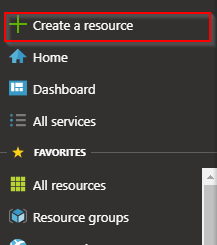
  1_azure_portal_create_resource

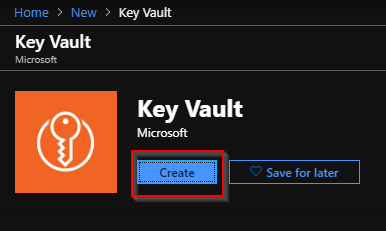
  •  Type in “key vault” in the search and press enter. Then click on create.2_create_key_vault
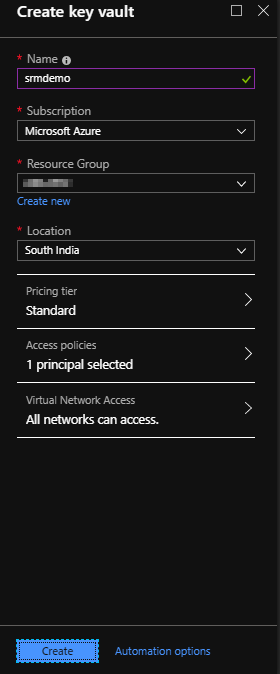
  • Put in the available inputs from the dropdown and click on create3_create_keyvault
Name Name of your key vault needs to be unique.
Subscription You will see whatever subscription is assigned to your account, in the drop down. Select one of them where your key vault needs to be created.
Resource group you will see the resource groups that your account has access to and you need to choose one of them where your key vault will be created. You also have the option to create a new resource group if you do not have one already.
Location Choose a location near to your/application users geographical location.
Pricing tier There are 2 pricing tier available. One is A1 Standard which provides on Geo Availability feature and the other one is P1 premium subscription which provides one additional feature “HSM backed keys”. For our demo, please choose standard.
Access policies By default, your account will be selected in the access policies. We will see how to add our application so that it can access the key vault, later part of the demo.
Virtual network access You can specify if you want all network to access key vault or only selected few virtual networks. In this demo we will go with the first option.

Once all the inputs are in place, click on create.

Create a ASP.NET web application 

  • Now we will create the web app. First of all, we will work with ASP.NET web application since most of the legacy application which are being migrated to cloud are ASP.NET web applications. If you already have an application you can skip the next few steps which takes care of creating a new application.
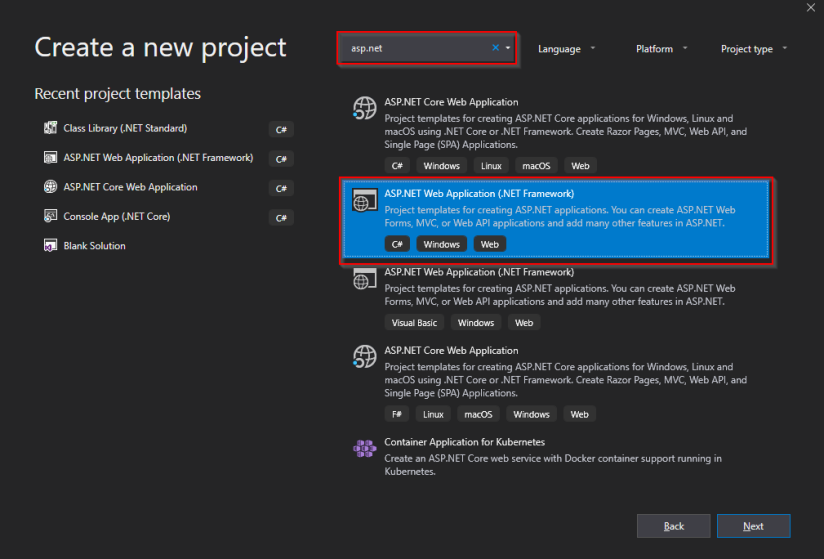
  • Open Visual Studio and click on create new project.
  • Search for ASP .NET and choose ASP.NET Web Application (.NET framework) and click on next.5_VS_ASP.NET_Webapp
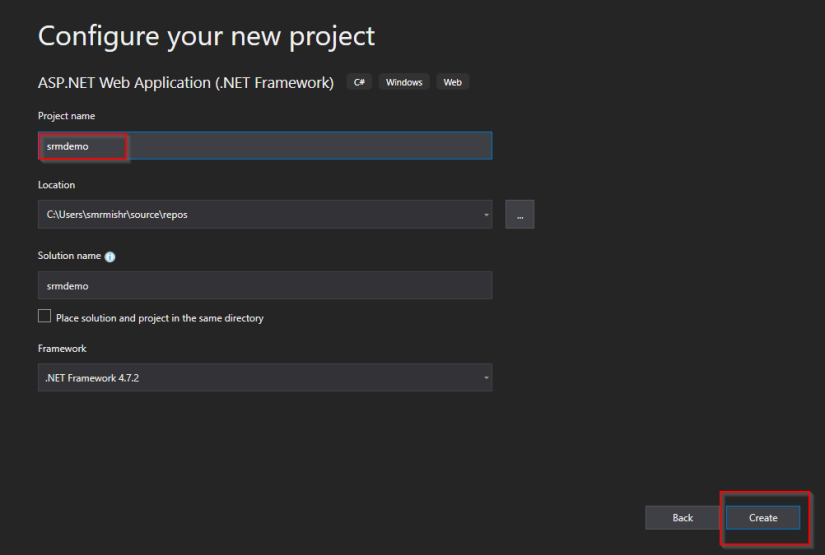
  • Give a name to your application and fill the other fields if it is not filled automatically and click on create.6_VS_configure_asp.net_webapp
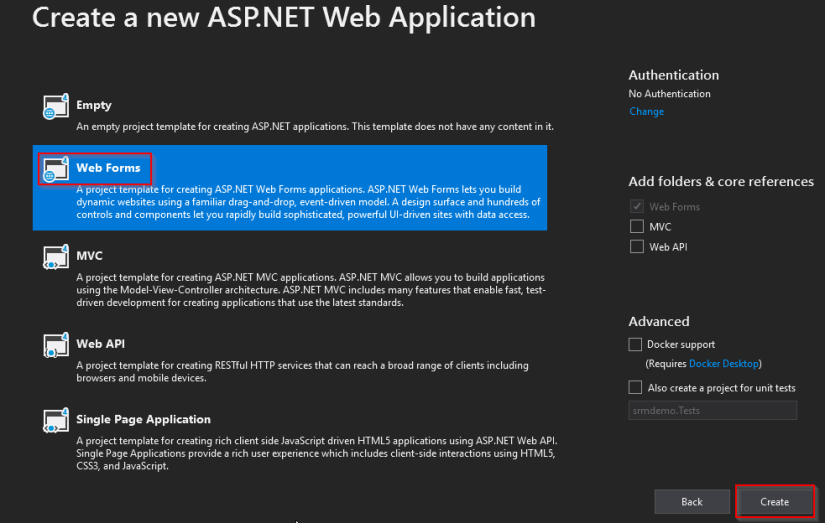
  • Click on web forms and click on create.7_VS_create_webforms
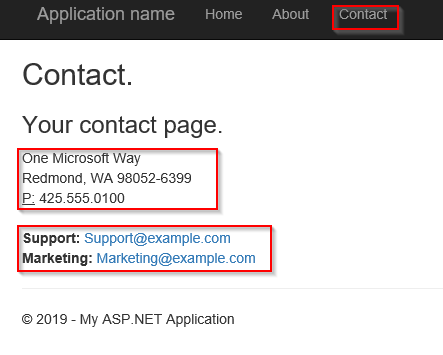
  • Once the web app is created, run it. By default the contact page will be as below.  

8_Default_Contact_Page

Add a secret in key vault

  • The default application have hardcoded the address, support email id and marketing email id here. We will remove these hardcoded values from code and add them in the key vault and then we will retrieve these values from key vault.
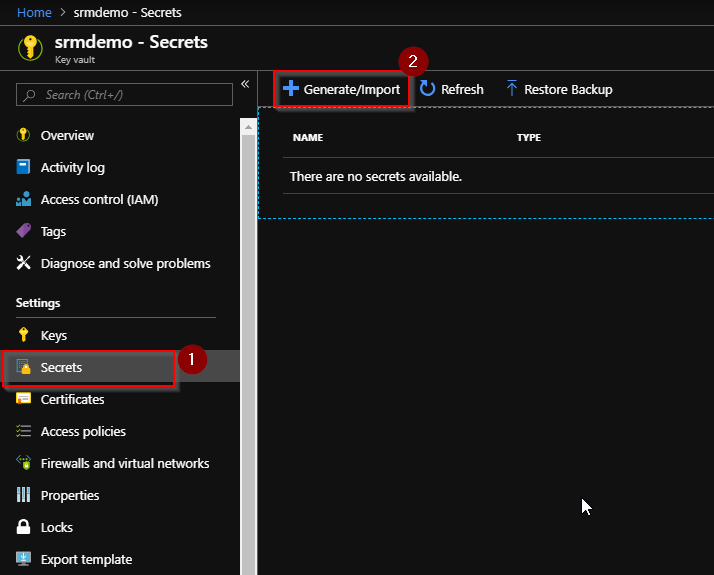
  • Open Azure portal and go to your key vault. Click on secrets > generate/import9_generate_key
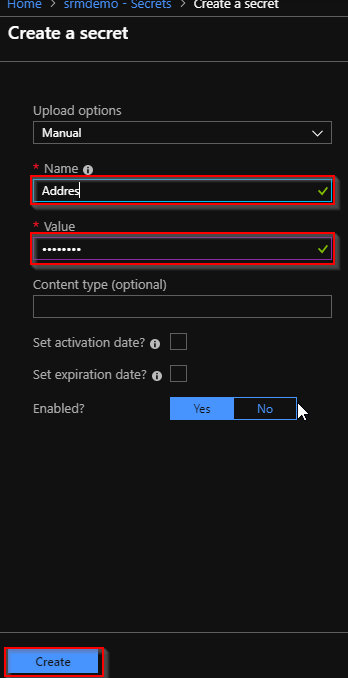
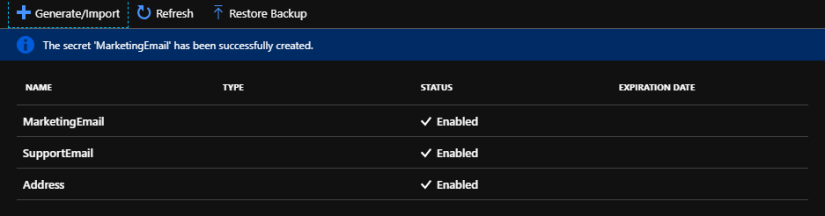
  • Create 3 secrets as Address, SupportEmail and MarketingEmail in the vault. I have put the values of these secrets as KeyVaultAddress, KeyVaultSupportEmail, KeyVaultMarketingEmail respectively.10_create_secret11_vault_secrets

Give Key Vault access to your application

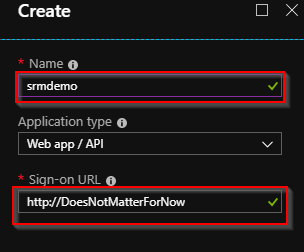
  • If your application is not already registered in Azure Active directory, go to azure portal and click on Azure active directory > App registration > new application registration.12_app_registration
  • Fill in the required fields and click on create.13_app_registration2
  • Note: If your project is in azure dev ops, the app registration will be automatically done when you create a service connection. And Sign-on URL is not needed for our demo but be careful while giving the URL when you work on actual project.
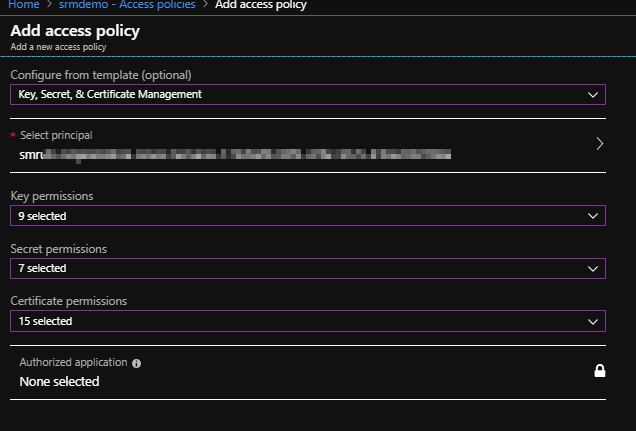
  • Once your application is registered, you can go to key vault > access policies26_accesspolicy
  • All the values we need, will be populated by default. You just need to choose your application name from the “select the principal” dropdown. You can update the other fields as well based on your need. Once you click okay, your application will be added to the access policy of the key vault. Then click on save.

Update the code to retrieve secrets from key vault

Changes in Contact.aspx:

  • We need to replace html anchor tags with asp:HyperLink tags so that they can be controlled from the code behind.
  • Before changes:

    <address>
     One Microsoft Way<br />
     Redmond, WA 98052-6399<br />
    <abbr title="Phone">P:</abbr>
    425.555.0100
    </address>
    <address>
    <strong>Support:</strong> <a href="mailto:Support@example.com">Support@example.com</a><br />
    <strong>Marketing:</strong> <a href="mailto:Marketing@example.com">Marketing@example.com</a>
    </address>
  • After changes:

    <address>
     <asp:Label ID="lblAddress" runat="server"></asp:Label>
    </address>
    <address>
     <strong>Support:</strong>
     <asp:HyperLink ID="hyperlinkSupport"
                    NavigateUrl="mailto:Support@example.com"
                    Target="_new"
                    runat="server" />
     <strong>Marketing:</strong>
     <asp:HyperLink ID="hyperlinkMarket"
                    NavigateUrl="mailto:Market@example.com"
                    Target="_new"
                    runat="server" />
    </address>

Changes in contact.aspx.cs

  • Add the below lines in the pageload method to retrieve the secrets from key vault and update the address and email ids.
lblAddress.Text = KeyVaultService.Address;
hyperlinkMarket.Text = KeyVaultService.MarketingEmailID;
hyperlinkSupport.Text = KeyVaultService.SupportEmailID;
  • KeyVaultService is static class which needs to have 3 variables such as Address, MarketingEmail and SupportEmail. We are going to create this class in next step.

Changes in KeyVaultService.cs

  • It is a best practice to create a static class which will expose static methods to deal with the azure keyvault or any service for that matter. So that you can refer this static class and use its methods and variables directly to deal with azure services without creating any instance of that class.
  • So right click on the solution and add a class library project named AzureServiceHelper. You can keep adding classes to this project for each service you are going to use.
  • Then right click on this project and add a class file and name it as KeyVaultService. Make it a static class and add the 3 variables to it.
    using Microsoft.IdentityModel.Clients.ActiveDirectory;
    using System;
    using System.Configuration;
    using System.Threading.Tasks;
    
    namespace AzureServiceHelper
    {
     public static class KeyVaultService
     {
      public static string Address { get; set; }
      public static string MarketingEmailID { get; set; }
      public static string SupportEmailID { get; set; }
     }
    }
    
  • Then we need to install the below nuget package to this solution. Microsoft.IdentityModel.Clients.ActiveDirectory.
  • To install a nuget package, write click on AzureServiceHelper project > manage nuget packages. Search for above package and install.
  • Then add the below task to get the authorization token for the app to use Key Vault.
public static async Task<string> GetToken(string authority, string resource, string scope)
{
 var authContext = new AuthenticationContext(authority);
 ClientCredential clientCred = new ClientCredential(ConfigurationManager.AppSettings["ClientId"], ConfigurationManager.AppSettings["ClientSecret"]);
 AuthenticationResult AuthResult = await authContext.AcquireTokenAsync(resource, clientCred);
 if (AuthResult == null)
  throw new InvalidOperationException("Failed to Obtain JWT token.");
return AuthResult.AccessToken;
}
  • The above method handles the authentication of your application to access the key vault service. It acquires the token using the client id and client secret of the application so that it can access the key vault using the token.
  • Now that your KeyVaultService class is ready, add the reference of this project (AzureServiceHelper) to the web app project (srmdemo) and resolve the 3 error by adding using AzureServiceHelper; at the top of the contact.aspx.cs.
  • You can see GetToken task is using two config values as ClientId and Client Secret. These 2 act like username and password for the application to access KeyVault. So let’s find the client id and client secret of our application.
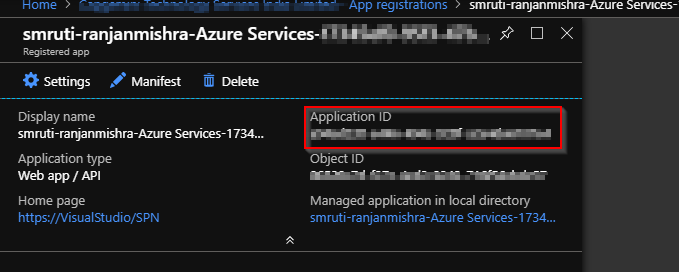
  • Client ID is nothing but the application id that you find in the app registration of your app in azure active directory.21_ClientId
  • If your application is not registered you need to register the application first in azure active directory.
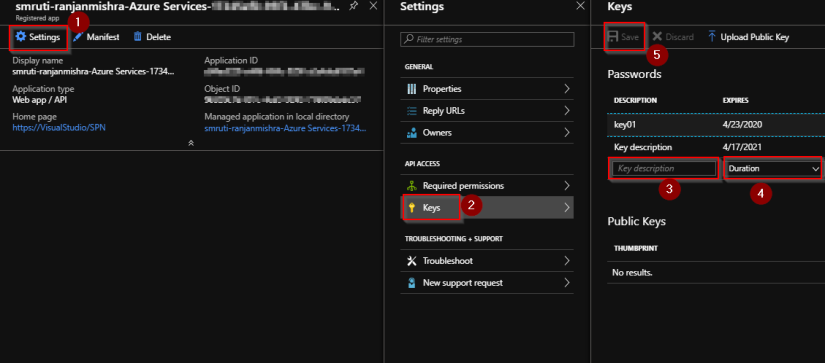
  • Client secret is a key in app registration which will be used by other services to authenticate the application. To create a client secret click on settings > Keys > Give a description of the key > provide the duration of the validation of that key > click on save. You will see the value of the key once it is saved. Make a note of that key since it will not be visible to users once it is created.22_client_secret
  • Now add the client id (Application ID) and client secret (the newly generated key) in the web.config of the web app in the appsettings tag.
     <appSettings>
     <add key="ClientId" value="xxxxxxxx-xxxx-xxxx-xxxx-xxxxxxxxxxxx" />
     <add key="ClientSecret" value="xxxxxxxxxxxxxxxxxxxzi35IC8SOLayy2glVZ+CN1U=" />
     </appsettings>

Changes in global.asax

  • The following lines will fetch the value of the secrets from key vault when the application starts.
  • Add the following code in the application_start method in global.asax file.
  • var kv = new KeyVaultClient(new KeyVaultClient.AuthenticationCallback(KeyVaultService.GetToken));
    KeyVaultService.Address = kv.GetSecretAsync(WebConfigurationManager.AppSettings[“AddressURI”]).Result.Value;
    KeyVaultService.SupportEmailID = kv.GetSecretAsync(WebConfigurationManager.AppSettings[“SupportEmailURI”]).Result.Value;
    KeyVaultService.MarketingEmailID = kv.GetSecretAsync(WebConfigurationManager.AppSettings[“MarketingEmailURI”]).Result.Value;
  • And then remove the errors by installing Microsoft.azure.Keyvault Nuget package to the web app. And referring the AzureServiceHelper Project.
  • As you can see there are 3 keys of web.config is being used here for the url of the secrets. Let’s add those keys in the web.config. You can find the urls of the secret in the key vault.
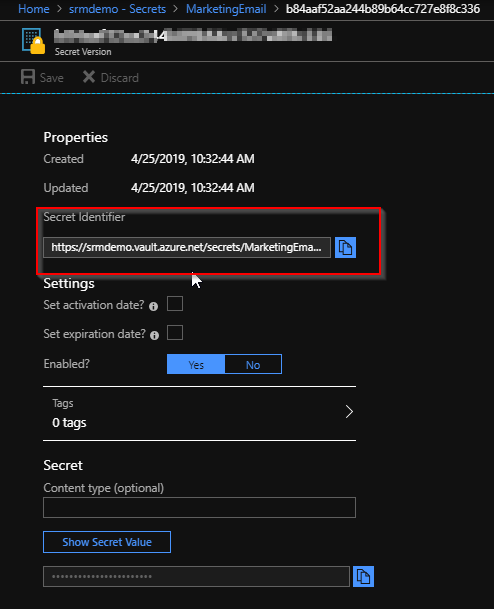
  • Go to Key Vault > Secrets > Click on the secret which you need the URL of > Click on the current version of the secret > Copy the “secret identifier” value.

24_secret_identifier

Note: https://srmdemo.vault.azure.net/secrets/MarketingEmail/b84aafewef52aas244b89ab64cc727e8f8c336

  • Your secret identifier should look like the above URL.
  • If you use this URL in your code, it will always point to this version of the secret no matter what. If you update the value of the secret, then also it will point to this older version of the secret because key vault has the versioning facility which saves all the previous versions of the secret.
  • If you want to use the latest version always remove the version use the URL without the version info. e.g:  https://srmdemo.vault.azure.net/secrets/MarketingEmail/
  • Now add these values in the web.config in the app settings section.25_webconfig
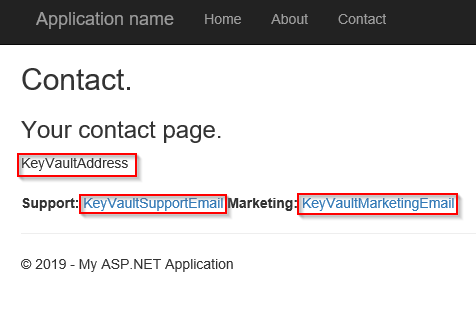
  • Now you can run the application and go to contact page to verify the result.27_result
  • As you can see all the 3 values that we were trying to get from key vault is populated here. This approach is ideal for setting up connection strings. Since we need the connection string when the application starts, we can use this approach to get the connection string at the Application_start method.
  • You can very well add a static class in the web project itself and write custom methods to receive the “key name” as input parameter and return the key value from the key vault. The code should look like as given below. Choose your approach based on your need.
  • using Microsoft.Azure.KeyVault;
    using Microsoft.IdentityModel.Clients.ActiveDirectory;
    using System;
    using System.Configuration;
    using System.Threading.Tasks;
    using System.Web.Configuration;
    
    public static class KeyVault
    {
     public static async Task<string> GetToken(string authority, string resource, string scope)
     {
      var authContext = new AuthenticationContext(authority);
      ClientCredential clientCred = new ClientCredential(ConfigurationManager.AppSettings["ClientId"], ConfigurationManager.AppSettings["ClientSecret"]);
      AuthenticationResult AuthResult = await authContext.AcquireTokenAsync(resource, clientCred);
    
      if (AuthResult == null)
       throw new InvalidOperationException("Failed to Obtion JWT token.");
    
      return AuthResult.AccessToken;
     }
    
     public static string getSecret(string key)
     {
      var kv = new KeyVaultClient(new KeyVaultClient.AuthenticationCallback(KeyVaultService.GetToken));
      return kv.GetSecretAsync(WebConfigurationManager.AppSettings[key]).Result.Value; 
     }
    }
  • This blog talked about how we can use key vault in ASP.NET application since most of the legacy applications are in ASP.NET. Below links will be helpful for learning more about using key vault with .NET applications. 
  • Using Key Vault as connected service : https://docs.microsoft.com/en-us/azure/key-vault/vs-key-vault-add-connected-service
  • Using Key Vault with ASP.NET Core : https://wakeupandcode.com/key-vault-for-asp-net-core-web-apps/

Happy learning. 🙂